Getting Started
This section provides a quick introduction to your first steps using KnitPkg. We assume you’ve already followed the installation instructions and have a fresh MetaTrader installation at: C:\Program Files\MetaTrader 5
We’ll walk through:
- Installing a demo indicator in one step
- Installing a demo Expert Advisor in one step
- Downloading a package and running its unit tests
Opening Terminal in the MetaTrader Data Folder
Open MetaTrader and go to File > Open Data Folder. Then right-click inside the folder and select Open in Terminal:
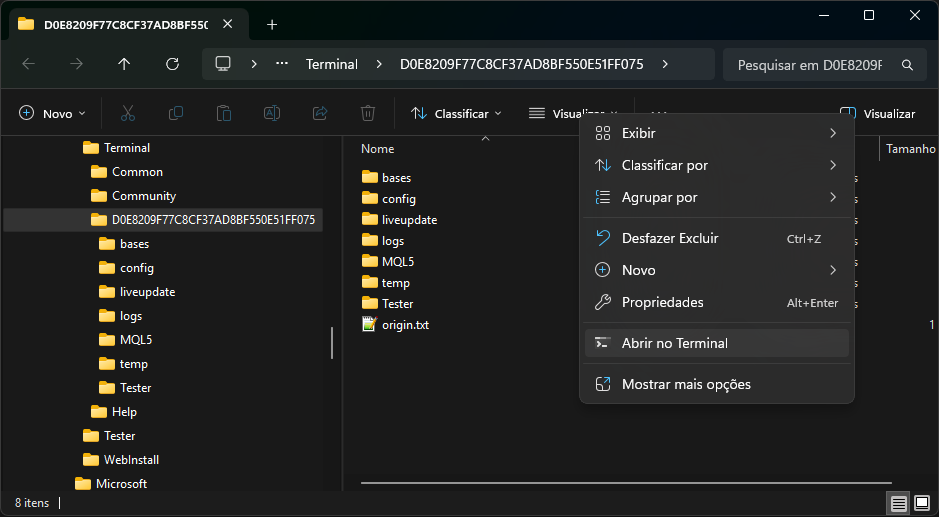
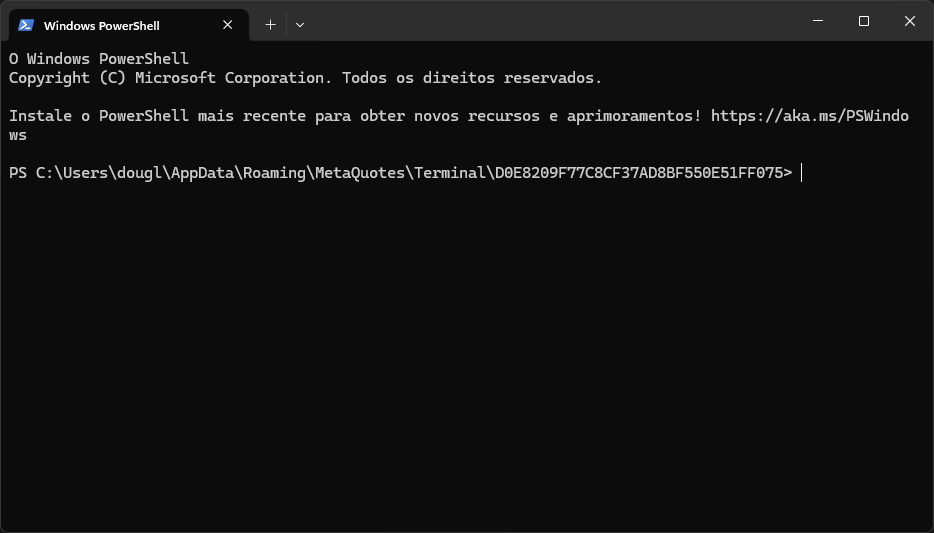
You should now see the Terminal open in the MetaTrader Data folder:
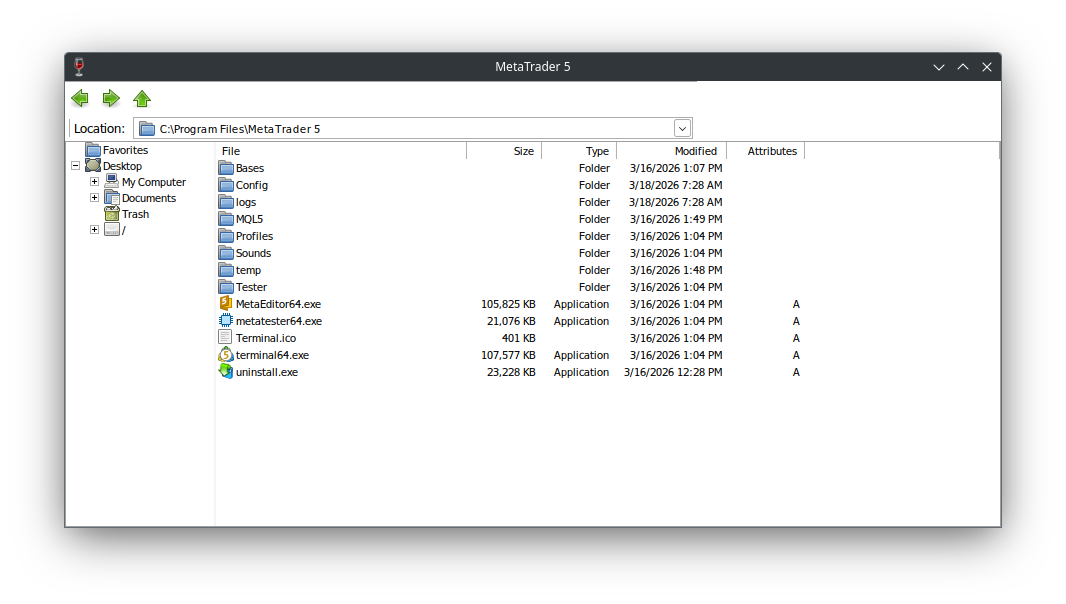
Open MetaTrader and go to File > Open Data Folder. Click on "Location" input text to discover the local wine MetaTrader home directory.
In this case, it is located at C:\Program Files\MetaTrader 5:
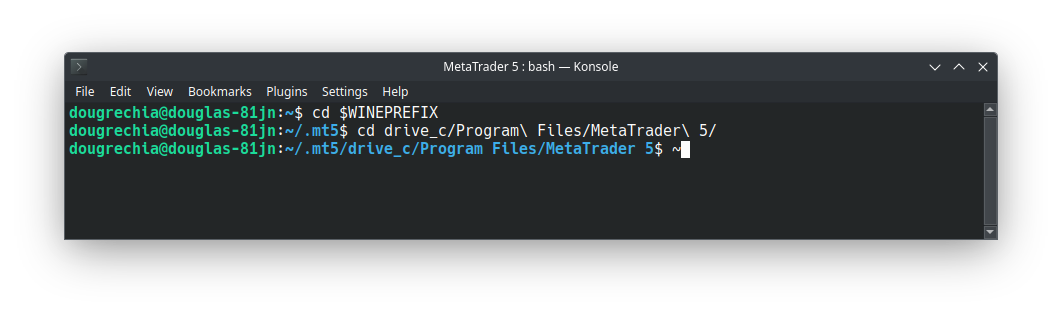
Open your favorite console and cd (change directory) to your wine prefix installation. Then cd to your MetaTrader data folder:
Installing the Demo Indicator in One Command
To download and compile the source code of the demo indicator sma directly into your MetaTrader environment, run:
After installation, the indicator won’t appear in MetaTrader until you refresh the Navigator. Right-click on Indicators and select Refresh:
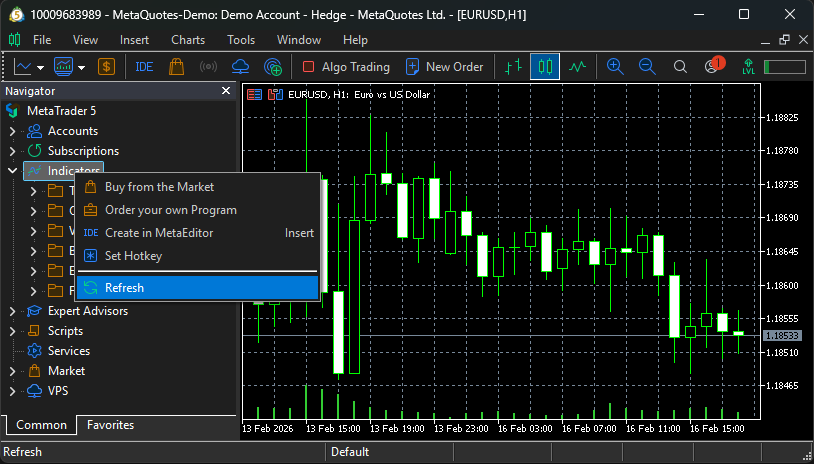
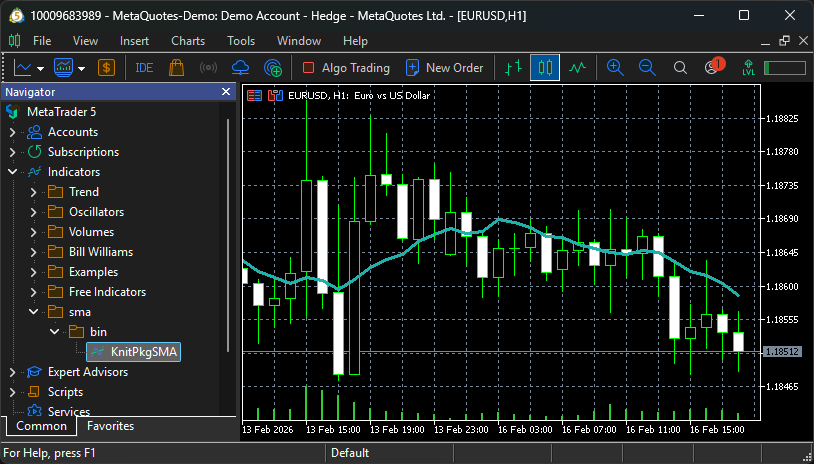
You should now see the indicator at: Indicators/sma/bin/KnitPkgSMA
Double-click it to attach it to a chart. It will display a 10-period SMA by default.
Note
By design, the KnitPkgSMA indicator updates only on new bars. It does not update on every tick, which significantly reduces CPU usage.
Installing the Demo Expert Advisor and Running a Backtest
To download and compile the source code of the demo Expert Advisor expertdemo, run:
Refresh the Expert Advisors section in the Navigator. You should now see: Expert Advisors/expertdemo/bin/KnitPkgExpertDemo
Warning
If you're using a real account, disable "Algo Trading" (Ctrl+E) to prevent accidental trades. This EA is for demonstration purposes only.
Instead of attaching the EA to a chart, let’s run a backtest:
- Open View > Strategy Tester
- In the Strategy Tester, select Single
- In the Settings tab:
- Choose Expert:
expertdemo/bin/KnitPkgExpertDemo.ex5 - Choose a symbol and timeframe (e.g., EURUSD H1)
- Set Modeling to 1 minute OHLC for faster execution
- Choose Expert:
Example configuration:
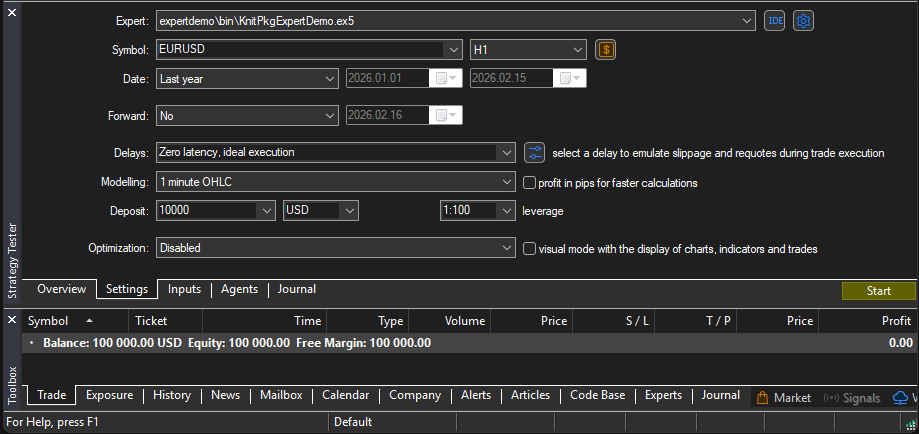
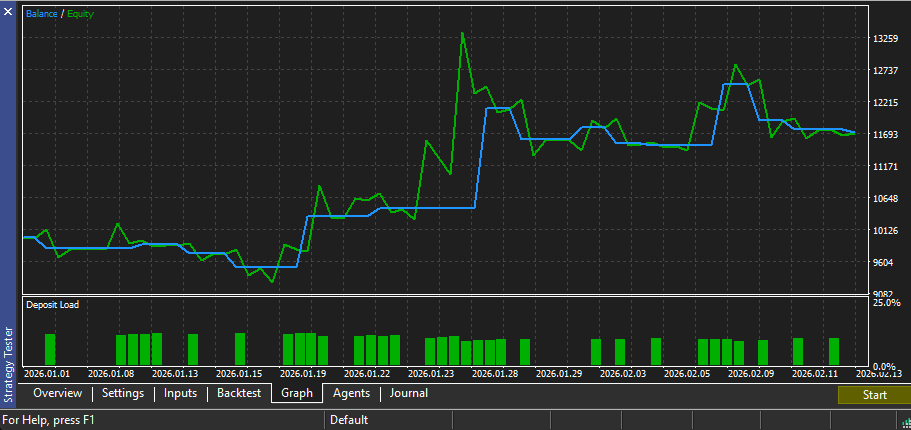
Click Start and wait for the test to complete. Then check the Graph and Backtest tabs:
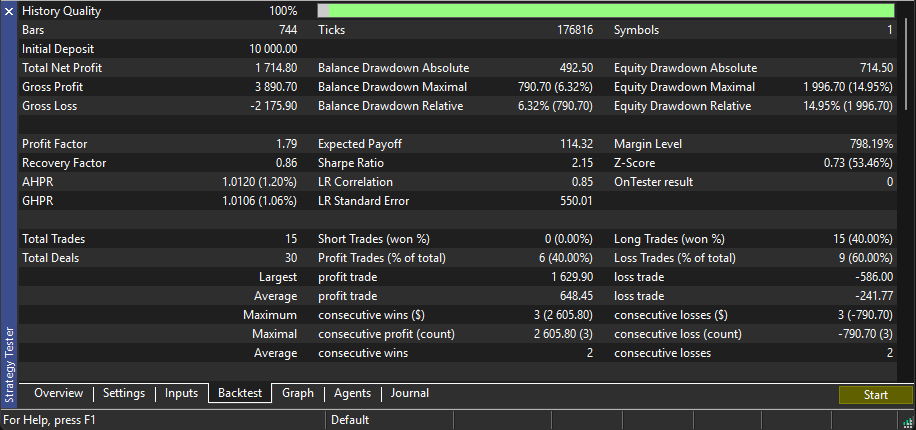
Note
The expertdemo EA implements a simple moving average crossover strategy (long-only). The results shown reflect EURUSD performance from 2026-01-01 to 2026-02-13.
Exploring a Package
KnitPkg encourages the use of reusable packages as building blocks for indicators, EAs, and other packages. Let’s explore the @douglasrechia/calc package, which powers both KnitPkgSMA and KnitPkgExpertDemo.
Download the package:
And explore it (and the others) with VSCode:
# Open the `calc` package
code .\MQL5\Scripts\calc\

# Open the `sma` indicator
code .\MQL5\Indicators\sma\

# Open `expertdemo` EA
code .\MQL5\Experts\expertdemo\
If you use MetaEditor, you can view only the MQL source files:
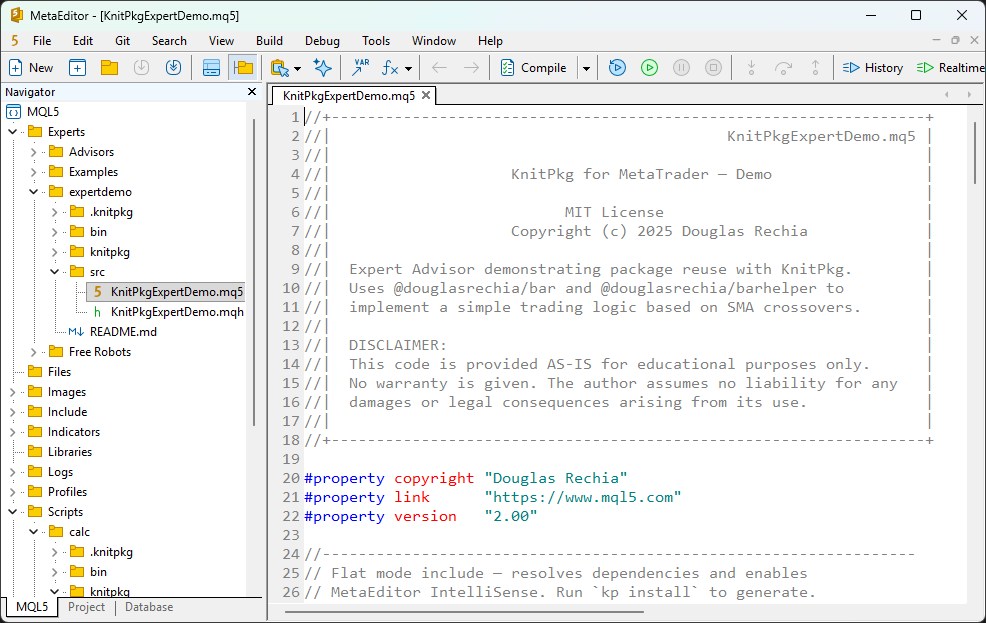
Note
VSCode is recommended to visualize and edit others file types required to KnitPkg such as yaml and json.
Now go back to MetaTrader and refresh the Scripts section in the Navigator. You’ll see the test scripts under: Scripts/calc/bin/
Run UnitTestATR and UnitTestSMA scripts (just double-click). Check the Experts tab in the Toolbox for test results:
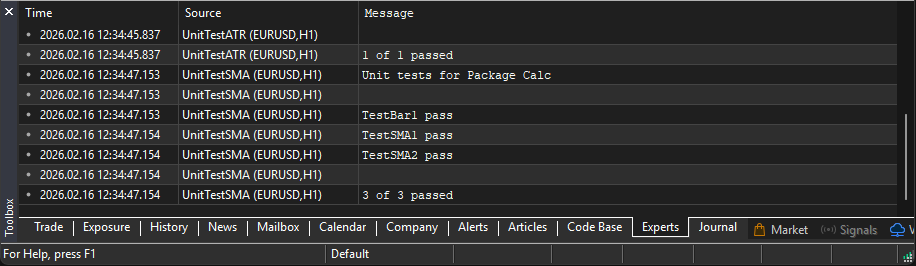
Congratulations! You’ve successfully installed your first indicator, EA, and explored a reusable package using KnitPkg.
But this is just scratching the surface.
To truly understand how KnitPkg works and how to take full advantage of its capabilities, we encourage you to continue reading:
- The Concepts section explains the core ideas and design principles behind KnitPkg.
- The User Guide provides detailed instructions on commands, workflows, and the full development lifecycle.
Dive deeper and unlock the full power of modular, testable, and maintainable MQL development with KnitPkg.